ESP32-S3 + 1.3” SH1106 OLED Complete Tutorial — Cyber Octopus Animation (I2C + U8g2)
Difficulty: ⭐⭐☆☆☆ (Beginner-friendly) Estimated time: 30 minutes Tested with: Arduino IDE 2.3.8 · U8g2 v2.35.30 · ESP32 Board Package 3.3.8
TL;DR (Quick Start):
- Wiring: SDA → GPIO 8, SCL → GPIO 9, VCC → 3.3V, GND → GND
- Install library: U8g2 (by oliver)
- In the constructor, set the I2C address to
0x3C * 2, and change the Wire initialization toWire.begin(8, 9)- Upload the code — your octopus starts swimming
- The code uses a Lissajous curve motion algorithm — dig into the details if you’re curious
Introduction
Have you ever scrolled past those tiny OLED screens on shopping sites? They’re barely the size of a thumbnail, yet the demo videos show silky-smooth animations that look both flashy and fun.
That’s exactly what hooked me — I ordered a 1.3” SH1106 OLED the very next afternoon. Then I ran into the classic problem: the screen arrived, the code uploaded successfully, it lit up — but displayed absolutely nothing.
After a whole afternoon of debugging, I found the pitfalls boil down to two things: the I2C pins aren’t the default 21/22, and the SH1106 driver chip is not the same as the SSD1306 — they look similar but are not interchangeable.
Once you clear those two hurdles, the rest is smooth sailing. The goal of this tutorial: get a little octopus swimming across your OLED screen in under 30 minutes — with bubbles coming out of its mouth.
Demo
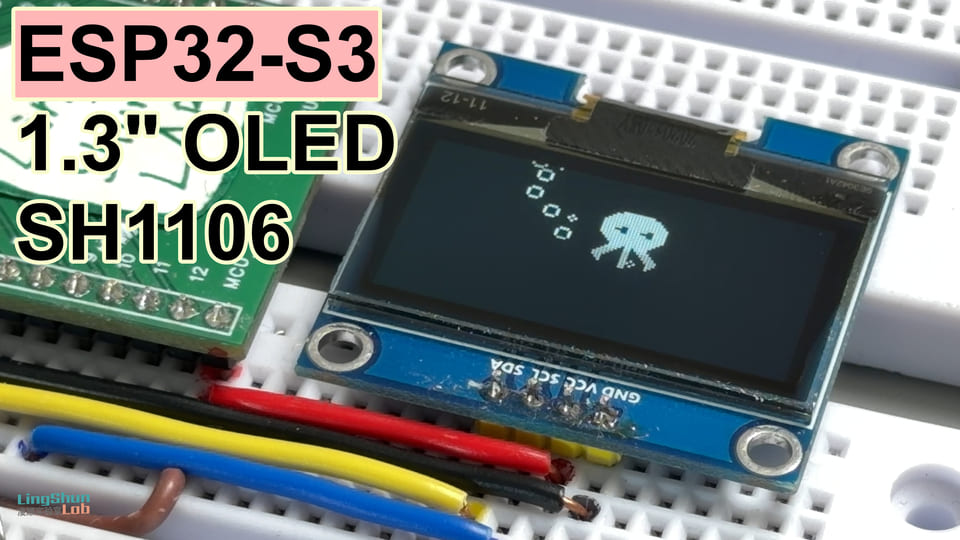
A 32×32 pixel octopus swims across the screen following a Lissajous curve (that elegant figure-8 wave pattern), while bubbles of varying sizes continuously stream from its mouth and slowly drift away until they fade out.
Component Overview
1.3” OLED SH1106
The SH1106 is a monochrome OLED driver chip that translates the 0s and 1s from your code into lit pixels on the screen. Think of it as a dot-matrix interpreter — you tell it “light up row 30, column 50,” and it controls the corresponding organic LED to illuminate.
| Parameter | Value |
|---|---|
| Resolution | 128 × 64 pixels |
| Driver Chip | SH1106 (≠ SSD1306) |
| Interface | I2C (default address 0x3C) |
| Operating Voltage | 3.3V / 5V compatible |
| Screen Size | 1.3 inches |
Why this one: cheap, capable, and with the U8g2 library, dot-matrix animations are a breeze. Just make sure you don’t accidentally buy the 0.96” SSD1306 — different driver chip means the code won’t work out of the box and you’ll get a blank screen.
Bill of Materials (BOM)
| Component | Quantity |
|---|---|
| ESP32-S3 development board | × 1 |
| 1.3” OLED SH1106 (I2C) | × 1 |
| Dupont wires (male-to-female) | × 4 |
Wiring
| 1.3” OLED Pin | Connect to ESP32-S3 |
|---|---|
| VCC | 3.3V |
| GND | GND |
| SDA | GPIO 8 |
| SCL | GPIO 9 |
Double-check each connection after wiring — it saves 80% of debugging time. Swapped SDA/SCL is the most common cause of a blank screen: everything powers on normally, but nothing displays.
Installing the Library
In the Arduino IDE Library Manager, search for U8g2 and install the version published by oliver.
Tested version: U8g2 v2.35.30
U8g2 is an open-source display library maintained at olikraus/u8g2. It supports virtually all common monochrome OLED/LCD driver chips, including the SH1106.
Complete Code
#include <Arduino.h>
#include <U8g2lib.h>
#include <Wire.h>

// Step 1: Declare the U8g2 object
// Note: Select SH1106, 128×64, full buffer mode, hardware I2C
// U8G2_R2 = screen rotated 180 degrees (adjust based on your hardware orientation; use U8G2_R0 if no rotation needed)
U8G2_SH1106_128X64_NONAME_F_HW_I2C u8g2(U8G2_R2, /* reset=*/ U8X8_PIN_NONE);

// ==================== Octopus Animation Frames (stored in Flash to save RAM) ====================
// 4-frame animation, each frame 32×32 pixels, XBM bitmap format
const unsigned char animation_frame_0[] PROGMEM = {
  0x00, 0x00, 0x00, 0x00, 0x00, 0x00, 0x00, 0x00, 0x00, 0xF8, 0x07, 0x00,
  0x00, 0xFE, 0x3F, 0x00, 0x80, 0xFF, 0x7F, 0x00, 0xC0, 0xFF, 0xFF, 0x00,
  0xE0, 0xFF, 0xFF, 0x01, 0xF0, 0xFF, 0xFF, 0x03, 0xF0, 0xFF, 0xFF, 0x03,
  0xF0, 0xFF, 0xFF, 0x03, 0xF0, 0xF3, 0xF3, 0x03, 0xF0, 0xF0, 0xF0, 0x03,
  0xF0, 0xF3, 0xF3, 0x03, 0xF0, 0xFF, 0xFF, 0x03, 0xE0, 0xFF, 0xFF, 0x01,
  0xC0, 0xFF, 0xFF, 0x00, 0x80, 0xFF, 0x7F, 0x00, 0x00, 0xEF, 0x3D, 0x00,
  0x00, 0xEF, 0x3D, 0x00, 0x00, 0xC7, 0x38, 0x00, 0x00, 0xC7, 0x38, 0x00,
  0x80, 0xC3, 0x70, 0x00, 0x80, 0xC3, 0x70, 0x00, 0x80, 0xC1, 0x60, 0x00,
  0x80, 0xC1, 0x60, 0x00, 0xC0, 0xC0, 0xC0, 0x00, 0xC0, 0xC0, 0xC0, 0x00,
  0x40, 0x80, 0x80, 0x00, 0x00, 0x00, 0x00, 0x00, 0x00, 0x00, 0x00, 0x00,
  0x00, 0x00, 0x00, 0x00, 0x00, 0x00, 0x00, 0x00
};
const unsigned char animation_frame_1[] PROGMEM = {
  0x00, 0x00, 0x00, 0x00, 0x00, 0x00, 0x00, 0x00, 0x00, 0x00, 0x00, 0x00,
  0x00, 0xFC, 0x0F, 0x00, 0x00, 0xFF, 0x3F, 0x00, 0x80, 0xFF, 0x7F, 0x00,
  0xC0, 0xFF, 0xFF, 0x00, 0xE0, 0xFF, 0xFF, 0x01, 0xE0, 0xFF, 0xFF, 0x01,
  0xE0, 0xE7, 0xE7, 0x01, 0xE0, 0xE1, 0xE1, 0x01, 0xE0, 0xE7, 0xE7, 0x01,
  0xE0, 0xFF, 0xFF, 0x01, 0xC0, 0xFF, 0xFF, 0x00, 0x80, 0xFF, 0x7F, 0x00,
  0x00, 0xFF, 0x3F, 0x00, 0x00, 0xFE, 0x1F, 0x00, 0x00, 0xDE, 0x1E, 0x00,
  0x00, 0xCF, 0x3C, 0x00, 0x80, 0xC7, 0x78, 0x00, 0xC0, 0xC3, 0xF0, 0x00,
  0xE0, 0xC1, 0xE0, 0x01, 0xE0, 0xC0, 0xC0, 0x01, 0xC0, 0xC0, 0xC0, 0x00,
  0x80, 0xC0, 0x40, 0x00, 0x00, 0xC0, 0x00, 0x00, 0x00, 0x00, 0x00, 0x00,
  0x00, 0x00, 0x00, 0x00, 0x00, 0x00, 0x00, 0x00, 0x00, 0x00, 0x00, 0x00,
  0x00, 0x00, 0x00, 0x00, 0x00, 0x00, 0x00, 0x00
};
const unsigned char animation_frame_2[] PROGMEM = {
  0x00, 0xF0, 0x00, 0x00, 0x00, 0xF8, 0x01, 0x00, 0x00, 0xFC, 0x03, 0x00,
  0x00, 0xFE, 0x07, 0x00, 0x00, 0xFF, 0x0F, 0x00, 0x80, 0xFF, 0x1F, 0x00,
  0x80, 0xFF, 0x1F, 0x00, 0x80, 0xFF, 0x1F, 0x00, 0x80, 0xF9, 0x19, 0x00,
  0x80, 0xF0, 0x10, 0x00, 0x80, 0xF9, 0x19, 0x00, 0x80, 0xFF, 0x1F, 0x00,
  0x80, 0xFF, 0x1F, 0x00, 0x00, 0xFF, 0x0F, 0x00, 0x00, 0xFE, 0x07, 0x00,
  0x00, 0xFC, 0x03, 0x00, 0x00, 0x6C, 0x03, 0x00, 0x00, 0x66, 0x06, 0x00,
  0x00, 0x63, 0x0C, 0x00, 0x80, 0x61, 0x18, 0x00, 0xC0, 0x60, 0x30, 0x00,
  0x60, 0x60, 0x60, 0x00, 0x30, 0x60, 0xC0, 0x00, 0x18, 0x60, 0x80, 0x01,
  0x0C, 0x60, 0x00, 0x03, 0x06, 0x60, 0x00, 0x06, 0x02, 0x60, 0x00, 0x04,
  0x00, 0x60, 0x00, 0x00, 0x00, 0x00, 0x00, 0x00, 0x00, 0x00, 0x00, 0x00,
  0x00, 0x00, 0x00, 0x00, 0x00, 0x00, 0x00, 0x00
};
const unsigned char animation_frame_3[] PROGMEM = {
  0x00, 0x00, 0x00, 0x00, 0x00, 0xF8, 0x07, 0x00, 0x00, 0xFE, 0x3F, 0x00,
  0x80, 0xFF, 0x7F, 0x00, 0xC0, 0xFF, 0xFF, 0x00, 0xE0, 0xFF, 0xFF, 0x01,
  0xF0, 0xFF, 0xFF, 0x03, 0xF0, 0xFF, 0xFF, 0x03, 0xF0, 0xFF, 0xFF, 0x03,
  0xF0, 0xF3, 0xF3, 0x03, 0xF0, 0xF0, 0xF0, 0x03, 0xF0, 0xF3, 0xF3, 0x03,
  0xF0, 0xFF, 0xFF, 0x03, 0xE0, 0xFF, 0xFF, 0x01, 0xC0, 0xFF, 0xFF, 0x00,
  0x80, 0xFF, 0x7F, 0x00, 0x00, 0xFF, 0x3F, 0x00, 0x00, 0xF6, 0x06, 0x00,
  0x00, 0xF6, 0x06, 0x00, 0x00, 0x63, 0x0C, 0x00, 0x00, 0x63, 0x0C, 0x00,
  0x80, 0x61, 0x18, 0x00, 0x80, 0x61, 0x18, 0x00, 0x80, 0x60, 0x10, 0x00,
  0x80, 0x60, 0x10, 0x00, 0x40, 0x60, 0x20, 0x00, 0x40, 0x60, 0x20, 0x00,
  0x00, 0x00, 0x00, 0x00, 0x00, 0x00, 0x00, 0x00, 0x00, 0x00, 0x00, 0x00,
  0x00, 0x00, 0x00, 0x00, 0x00, 0x00, 0x00, 0x00
};

// Put the 4 frame pointers into an array for easy cyclic access
const unsigned char* animation_frames[] = {
  animation_frame_0, animation_frame_1, animation_frame_2, animation_frame_3
};

const int TOTAL_FRAMES = 4;
const unsigned long FRAME_DELAY = 120; // Frame interval (ms) — lower = faster, higher = slower
int currentFrame = 0;
unsigned long lastFrameTime = 0;
const int SPRITE_SIZE = 32; // Octopus bitmap size: 32×32

// ==================== Bubble Particle System ====================
#define MAX_BUBBLES 10 // Maximum 10 bubbles on screen at once

struct Bubble {
  float x;       // Current X coordinate
  float y;       // Current Y coordinate
  float radius;  // Current radius (float for smooth shrinking)
  float speedY;  // Pixels to float upward per frame
  float wobble;  // Random phase offset for side-to-side wobble
  bool active;   // Is this bubble "alive"?
};

Bubble bubbles[MAX_BUBBLES]; // Object pool — avoids dynamic memory allocation

void setup() {
  Serial.begin(115200);

  // Step 2: Seed the random number generator so bubbles differ each boot
  randomSeed(analogRead(0));

  // Step 3: Initialize I2C with SDA=8, SCL=9
  Wire.begin(8, 9);
  u8g2.setI2CAddress(0x3C * 2); // U8g2 requires address left-shifted by 1: 0x3C << 1 = 0x78
  u8g2.begin();

  // Step 4: Mark all bubbles as inactive
  for (int i = 0; i < MAX_BUBBLES; i++) {
    bubbles[i].active = false;
  }

  Serial.println("Octopus aquarium initialized successfully!");
}

void loop() {
  unsigned long currentTime = millis();

  // Use non-blocking timing instead of delay() for smooth animation
  if (currentTime - lastFrameTime >= FRAME_DELAY) {
    lastFrameTime = currentTime;

    // ======== Step 1: Calculate octopus position using Lissajous curve ========
    // Two sine waves at different frequencies create an elegant figure-8 swimming path
    float t = currentTime * 0.0008;

    float waveX = sin(t * 0.8) * 0.6 + sin(t * 0.3) * 0.4;
    int posX = 48 + (int)(waveX * 48); // Horizontal range roughly 0~96

    float waveY = cos(t * 0.7) * 0.6 + sin(t * 0.4) * 0.4;
    int posY = 16 + (int)(waveY * 16); // Vertical range roughly 0~32

    // ======== Step 2: 25% chance to spawn a new bubble near the octopus mouth ========
    if (random(100) < 25) {
      for (int i = 0; i < MAX_BUBBLES; i++) {
        if (!bubbles[i].active) {
          bubbles[i].active = true;
          bubbles[i].x      = posX + 16 + random(-8, 8);   // Random offset near mouth
          bubbles[i].y      = posY + 24 + random(0, 5);
          bubbles[i].radius = random(15, 35) / 10.0;       // 1.5~3.5 pixels
          bubbles[i].speedY = random(10, 25) / 10.0;       // Random rise speed
          bubbles[i].wobble = random(0, 100) / 10.0;       // Random wobble phase
          break; // Only spawn one bubble per frame
        }
      }
    }

    // ======== Step 3: Clear the buffer and start drawing ========
    u8g2.clearBuffer();

    // Draw the octopus sprite (XBM bitmap)
    u8g2.drawXBMP(posX, posY, SPRITE_SIZE, SPRITE_SIZE, animation_frames[currentFrame]);

    // ======== Step 4: Update and draw all active bubbles ========
    for (int i = 0; i < MAX_BUBBLES; i++) {
      if (bubbles[i].active) {
        bubbles[i].y -= bubbles[i].speedY; // Float upward

        // Side-to-side wobble synchronized with time — like real bubbles in water
        float currentX = bubbles[i].x + sin(t * 3.0 + bubbles[i].wobble) * 4.0;

        // Shrink bubble each frame to simulate fading away
        bubbles[i].radius -= 0.06;

        // Radius too small or drifted off the top of the screen → recycle this bubble
        if (bubbles[i].radius <= 0.5 || bubbles[i].y < -5) {
          bubbles[i].active = false;
        } else {
          // Draw an open circle — looks more like a real bubble than a filled one
          u8g2.drawCircle((int)currentX, (int)bubbles[i].y, (int)bubbles[i].radius);
        }
      }
    }

    // Step 5: Push the entire buffer to the screen in one shot
    u8g2.sendBuffer();

    // Advance to the next frame
    currentFrame = (currentFrame + 1) % TOTAL_FRAMES;
  }
}
Code Walkthrough
Lissajous Curve Motion: Two sine/cosine waves at different frequencies are superimposed to make the octopus follow an elegant figure-8 path. It looks much better than simple back-and-forth movement, and only takes a few lines of trigonometry.
Bubble Object Pool: Ten Bubble structs are pre-allocated, with an active flag managing their lifecycle. This avoids memory fragmentation from new/delete — a common and reliable pattern on MCUs.
The PROGMEM Keyword: Adding this keyword to the bitmap arrays stores them in Flash instead of consuming precious SRAM. 4 frames × 128 bytes = 512 bytes — a worthwhile saving.
Non-blocking Timing: Using millis() instead of delay() allows the bubble physics updates and octopus frame switching to coordinate naturally in the same loop, without any stuttering.
Troubleshooting
Don’t panic — 90% of issues come from these common causes:
Screen doesn’t light up at all / no output Check power first — make sure VCC is connected to 3.3V, not 5V (many modules support 5V, but verify first). Then use a multimeter to confirm SDA and SCL aren’t swapped — this is the single most frequent mistake.
Screen lights up but shows all white or all black, no image
Most likely an I2C address issue. The code uses 0x3C * 2, which is required by U8g2. If your module has an I2C address jumper on the back set to 0x3D, change 0x3C to 0x3D and try again. You can also run an I2C Scanner sketch first to confirm the address.
Image displays but appears upside down
Change U8G2_R2 to U8G2_R0 in the constructor — the only difference is a 180-degree rotation.
Octopus goes off-screen
The maximum value of posX is roughly 96, which plus the 32-pixel width reaches exactly the 128 boundary. If you modify the motion amplitude parameters, make sure coordinates don’t exceed 128 - SPRITE_SIZE.
Bubbles look choppy
Try reducing FRAME_DELAY from 120 to 80. If still choppy, check the I2C bus speed — add Wire.setClock(400000) after Wire.begin(8, 9) to switch to fast mode (400 kHz).
FAQ
Q: Can I use other GPIO pins for I2C?
A: Yes — ESP32-S3 supports remapping I2C to any GPIO. Just change the pin numbers in Wire.begin(8, 9) to your preferred pins. SDA comes first, SCL second.
Q: My screen is a 0.96” SSD1306 — can I use this code directly?
A: Not directly — the driver chip is different. Replace the constructor with U8G2_SSD1306_128X64_NONAME_F_HW_I2C; the rest of the code can stay the same.
Q: How fast can the I2C run?
A: SH1106 supports standard mode at 100 kHz and fast mode at 400 kHz. This code doesn’t explicitly set the speed, so it defaults to 100 kHz. If the refresh feels slow, add Wire.setClock(400000).
Q: What does PROGMEM do, and can I remove it?
A: PROGMEM stores the array in Flash instead of SRAM. The 4 frames of bitmap data total about 512 bytes — removing it won’t break anything, but will consume 512 bytes of SRAM. ESP32-S3 has plenty of SRAM, so it’s not critical, but keeping it is a good habit.
Q: How do I make the octopus swim faster or slower?
A: Adjust the FRAME_DELAY value — smaller numbers mean faster, larger means slower. Bubble rise speed is controlled by the speedY range random(10, 25) / 10.0, which you can also tweak.
Q: How much RAM does the screen use?
A: U8g2 full buffer mode (_F_) maintains a complete frame buffer in RAM: 128×64 ÷ 8 = 1024 bytes, about 1KB. ESP32-S3 has 512KB SRAM, so this is no problem at all.
Ideas to Extend This Project
- Swap the character: Use image2cpp to convert any black-and-white image into an XBM bitmap and replace the octopus
- Add sensor interaction: Connect a sound sensor and make the octopus swim speed respond to volume
- Multi-screen setup: Connect two OLEDs to the same I2C bus (addresses 0x3C and 0x3D respectively) with one octopus on each
- Upgrade to TFT color: Switch to an ST7789 color TFT and use grayscale gradients for more detailed bubble effects