ESP32-S3 + 0.91" OLED Bilibili Follower Counter | Spring-Damped Physics Animation
Build a desktop Bilibili follower counter with ESP32-S3 and a 0.91" SSD1306 OLED (128x32), featuring a buttery spring-damped physics bounce whenever the number changes. Four-wire I2C wiring + full Arduino C++ code, with a troubleshooting guide included.
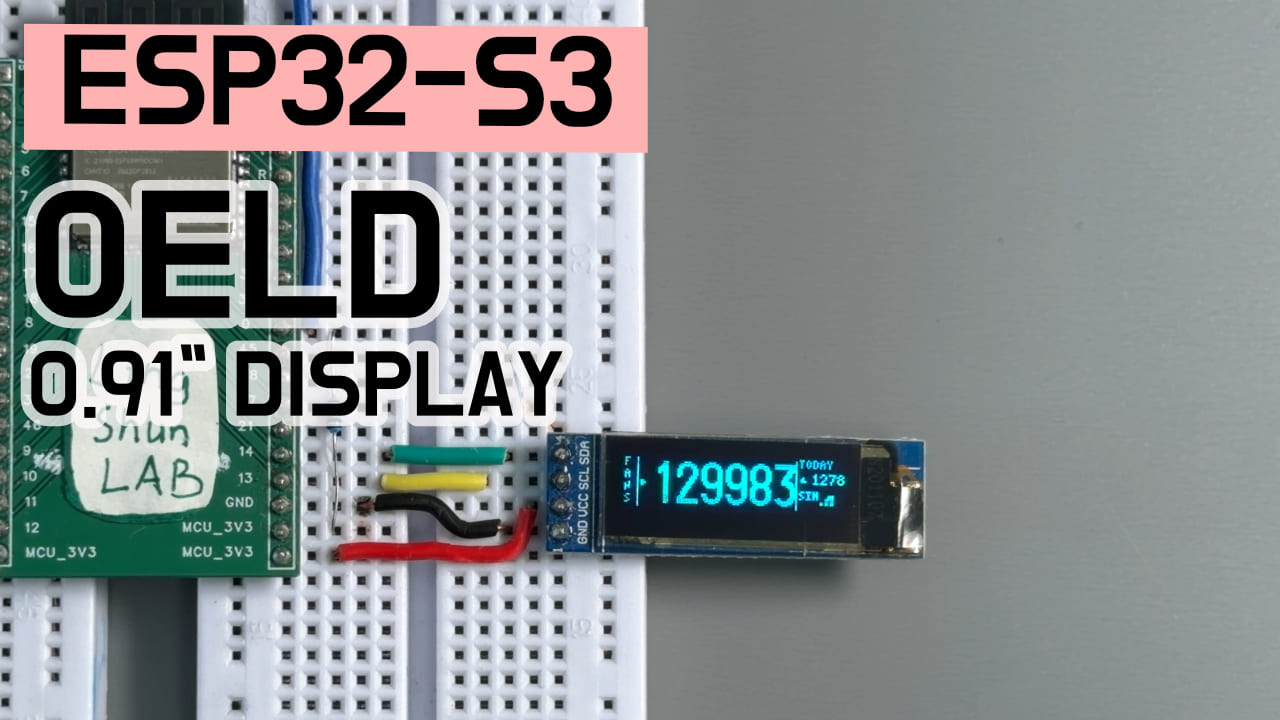
TL;DR: ESP32-S3 + 0.91“ OLED + Bilibili API = a desktop follower counter with buttery spring-damped physics animation. Stop checking your phone for stats.
Difficulty: ⭐⭐☆☆☆ (beginner-friendly) Estimated time: 30 minutes Test environment: Arduino IDE 2.3.8 + ESP32 board support package v3.3.10 + U8g2 v2.36.19 + ArduinoJson v7.4.3
TL;DR (quick start):
- Wiring: ESP32-S3 GPIO 14 -> OLED SDA, GPIO 13 -> OLED SCL, plus 3.3V and GND.
- Check: make sure the screen is properly powered and the I2C pins are not reversed.
- Install libraries: in Arduino IDE, search and install
U8g2(by oliver) andArduinoJson(by Benoit Blanchon).- Edit config: replace your Wi-Fi credentials and Bilibili UID in the full code, then flash it. Sit back and watch your follower count slide onto the screen with a silky mechanical bounce!
Introduction
I built a mesmerizing, satisfying desktop Bilibili follower counter out of this tiny OLED screen. No more unlocking your phone to check your stats.
The Result
The final effect is an elegant three-zone layout: a vertical “FANS” label and mechanical arrow on the left; the soul of the project in the middle - 24-pixel-tall, bold, pure-digit numbers in a clipped viewport with a physics-damped scrolling odometer; and on the right, today’s follower delta (automatically computed with up/down triangles) along with Wi-Fi signal strength and a heartbeat indicator.
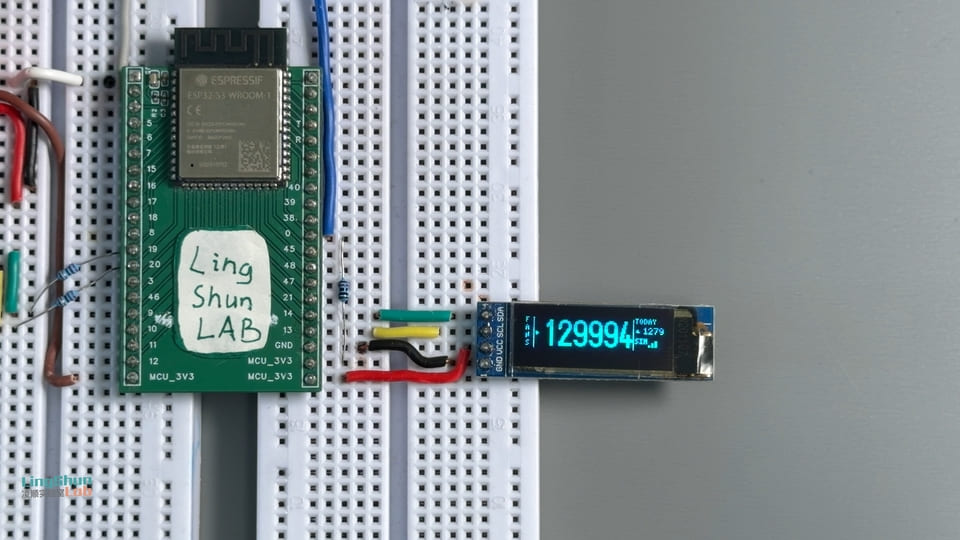
Component Overview
0.91“ OLED Screen (SSD1306)
Besides the core dev board (ESP32-S3), the most critical component in this project is the 0.91“ OLED screen.
The 0.91“ OLED is a “self-illuminating simultaneous interpreter” that translates the follower number pulled from the network by the ESP32-S3 into a pixel grid visible to your eyes in real time. Since each pixel emits its own light, it doesn’t need the bulky backlight panel of a traditional LCD, so contrast is extremely high - deep blacks and piercing brightness. We chose it for this project because it’s incredibly compact, affordable, and driven over I2C with just 4 wires, making it perfect for a refined desktop gadget.
| Spec | Value |
|---|---|
| Driver chip | SSD1306 |
| Resolution | 128 x 32 pixels |
| Interface | I2C (IIC) |
| Operating voltage | 3.3V ~ 5V |
| Display color | usually pure white or pure blue |
Bill of Materials (BOM)
| Component | Spec/Model | Qty | Purpose |
|---|---|---|---|
| ESP32-S3 dev board | any standard dual Type-C version | 1 | Main controller: handles networking, data fetching, and physics animation |
| 0.91“ OLED module | SSD1306 driver / 4-pin I2C interface | 1 | Display and physics viewport animation |
| Dupont wires | female-to-female / male-to-female (depends on your board) | 4 | Connect dev board to screen pins |
Pinout & Wiring
💡 Handy tip: after wiring up, double-check against the table below. Roughly 80% of silent-screen, black-screen, or overheating issues come from wrong wiring - 10 extra seconds checking can save you hours of debugging.
| OLED pin | ESP32-S3 pin | Function |
|---|---|---|
| GND | GND | Ground (the baseline of a shared language) |
| VCC | 3.3V (or 3V3) | Power input |
| SCL | GPIO 13 | I2C clock line |
| SDA | GPIO 14 | I2C data line |
Required Libraries
In Arduino IDE 2.x, click the “Library Manager” icon on the left (or press Ctrl+Shift+I), and search and install these tested open-source libraries at the specified versions:
- U8g2 (by oliver) - tested version:
v2.36.19or above. Drives the OLED screen and supports precise clipped viewports (Clip Window). - ArduinoJson (by Benoit Blanchon) - tested version:
v7.4.3. Parses the JSON returned by the Bilibili API.
Full Code + Walkthrough
Copy the following full code into Arduino IDE. Before flashing, make sure to change const char* ssid and password to your own Wi-Fi credentials, and replace uid with the Bilibili UID you want to monitor.
/**
 * =========================================================================
 * ESP32-S3 0.91" OLED (128x32 SSD1306) Bilibili follower display, deluxe edition
 * =========================================================================
 * Features: refined three-zone layout + a proper spring-damped bounce physics engine
 */

#include <WiFi.h>
#include <HTTPClient.h>
#include <WiFiClientSecure.h>
#include <ArduinoJson.h>
#include <U8g2lib.h>
#include <Wire.h>
#include <Preferences.h>
#include <time.h>

// ================== Debug switches ==================
#define DEBUG_SIMULATE   0     // [IMPORTANT] 1=enable simulated data (no network needed to test animation), 0=use real API
#define SIM_INTERVAL_MS  2000  // Simulated data change interval (ms)
#define SIM_START_VALUE  9985  // Simulated starting follower count (set to 9985 to quickly watch the bounce when jumping to 5 digits)

// ================== User config ==================
const char* ssid     = "YOUR_WIFI_SSID";      // Replace with your Wi-Fi name
const char* password = "YOUR_WIFI_PASSWORD";  // Replace with your Wi-Fi password
const char* uid      = "YOUR_BILIBILI_UID";   // Replace with the Bilibili UID you want to monitor

String biliApiUrl = "https://api.bilibili.com/x/relation/stat?vmid=" + String(uid);
const unsigned long FETCH_INTERVAL = 30 * 60 * 1000; // Refresh data over the network every 30 minutes

#define OLED_SDA 14
#define OLED_SCL 13
#define SCREEN_CONTRAST 255

// Animation parameters
#define SCROLL_EASING    0.18f   // Base spring tension coefficient
#define ANIM_FPS         60      // Animation frame rate
#define ANIM_INTERVAL    (1000/ANIM_FPS)

// Initialize U8g2 constructor
U8G2_SSD1306_128X32_UNIVISION_F_HW_I2C u8g2(U8G2_R0, U8X8_PIN_NONE, OLED_SCL, OLED_SDA);

// ================== State variables ==================
long targetFollowers = 0;
long todayBaseFollowers = 0;
long todayAdded = 0;
bool isInitialFetch = true;
bool connectionError = false;

unsigned long lastFetchTime = 0;
unsigned long lastAnimTime = 0;
unsigned long lastSimTime = 0;

Preferences preferences; // Safely persists today's baseline follower count in Flash, survives power loss

// ================== Core physics-damped bounce engine ==================
#define MAX_DIGITS 7

class DigitWheel {
public:
  float currentY = 0.0f;
  int   targetDigit = 0;
  float velocity = 0.0f;  // Core velocity variable of the spring damper

  void update(float easing) {
    float diff = (float)targetDigit - currentY;

    // Nearest-route handling for circular scrolling (0 <-> 9)
    if (diff > 5.0f)  diff -= 10.0f;
    if (diff < -5.0f) diff += 10.0f;

    if (fabs(diff) > 0.005f) {
      // Classic physics model: Hooke's law + viscous damping, producing silky bounce and decaying oscillation
      float accel = diff * easing - velocity * 0.25f;
      velocity += accel;
      currentY += velocity;

      // Circular range constraint
      while (currentY >= 10.0f) currentY -= 10.0f;
      while (currentY < 0.0f)   currentY += 10.0f;
    } else {
      currentY = (float)targetDigit;
      velocity = 0.0f; // Settle to rest
    }
  }
};

DigitWheel wheels[MAX_DIGITS];

// Forward declarations
void drawUI();
void drawLeftPanel();
void drawBigOdometer();
void drawRightPanel();
void drawWifiIcon(int x, int y);
void fetchBiliData();
void checkNewDayReset();

// ================== Setup ==================
void setup() {
  Serial.begin(115200);
  delay(500);
  Serial.println("\n=== Bilibili OLED Monitor Deluxe ===");

  Wire.begin(OLED_SDA, OLED_SCL);
  u8g2.begin();
  u8g2.setContrast(SCREEN_CONTRAST);
  u8g2.enableUTF8Print();

  // Step 1: draw an elegant splash screen
  u8g2.clearBuffer();
  u8g2.setFont(u8g2_font_7x13B_tr);
  u8g2.drawStr(20, 14, "BiliBili");
  u8g2.setFont(u8g2_font_6x10_tr);
  u8g2.drawStr(28, 28, "Fan Monitor");
  u8g2.sendBuffer();
  delay(800);

  preferences.begin("bilibili", false);
  todayBaseFollowers = preferences.getLong("base_fans", 0);

#if DEBUG_SIMULATE
  Serial.println("[SIM MODE] Simulation mode active");
  targetFollowers = SIM_START_VALUE;
  if (todayBaseFollowers == 0) {
    todayBaseFollowers = targetFollowers - 10; // Pretend today already grew by 10
  }
  todayAdded = targetFollowers - todayBaseFollowers;
  isInitialFetch = false;
#else
  // Step 2: connect to the local wireless network
  u8g2.clearBuffer();
  u8g2.setFont(u8g2_font_6x10_tr);
  u8g2.drawStr(4, 14, "WiFi connecting...");
  u8g2.drawStr(4, 28, ssid);
  u8g2.sendBuffer();

  WiFi.begin(ssid, password);
  int retry = 0;
  while (WiFi.status() != WL_CONNECTED && retry < 30) {
    delay(500);
    Serial.print(".");
    retry++;
  }

  if (WiFi.status() == WL_CONNECTED) {
    Serial.println("\nWiFi OK: " + WiFi.localIP().toString());
    // Step 3: configure time service for automatic midnight reset
    configTime(8 * 3600, 0, "ntp.aliyun.com", "time.windows.com");
    fetchBiliData();
  } else {
    Serial.println("\nWiFi failed");
    connectionError = true;
    targetFollowers = 0;
  }
#endif
}

// ================== Main loop ==================
void loop() {
  unsigned long now = millis();

#if DEBUG_SIMULATE
  // Simulated data logic: steady jumps, convenient for watching multiple wheels bouncing at once
  if (now - lastSimTime >= SIM_INTERVAL_MS) {
    lastSimTime = now;
    int delta = random(-2, 6); // Random oscillating growth from -2 to +5
    targetFollowers += delta;
    if (targetFollowers < 0) targetFollowers = 0;
    todayAdded = targetFollowers - todayBaseFollowers;
    Serial.printf("[SIM] target=%ld (delta=%+d) today=%+ld\n", targetFollowers, delta, todayAdded);
  }
#else
  // Fetch real network data on a timer
  if (now - lastFetchTime >= FETCH_INTERVAL || lastFetchTime == 0) {
    fetchBiliData();
    lastFetchTime = now;
  }
  checkNewDayReset();
#endif

  // Step 4: core animation refresh (locked to a steady 60FPS)
  if (now - lastAnimTime >= ANIM_INTERVAL) {
    lastAnimTime = now;

    // Parse the total follower count into each digit's individual wheel target
    long temp = targetFollowers;
    for (int i = MAX_DIGITS - 1; i >= 0; i--) {
      wheels[i].targetDigit = temp % 10;
      temp /= 10;
    }

    // Update the physics engine, blending in a high-order cascade delay so multi-digit motion has a staggered, layered feel
    for (int i = MAX_DIGITS - 1; i >= 0; i--) {
      float ease = SCROLL_EASING * (1.0f - i * 0.012f);
      if (ease < 0.07f) ease = 0.07f;
      wheels[i].update(ease);
    }

    // Step 5: full canvas render
    u8g2.clearBuffer();
    drawUI();
    u8g2.sendBuffer();
  }
}

// ================== UI layout drawing (classic three-zone design) ==================
void drawUI() {
  drawLeftPanel();    // Left vertical label
  drawBigOdometer();  // Center physics wheel digits
  drawRightPanel();   // Right delta and signal
}

void drawLeftPanel() {
  u8g2.setFont(u8g2_font_4x6_tr);
  u8g2.drawStr(2, 7,  "F");
  u8g2.drawStr(2, 14, "A");
  u8g2.drawStr(2, 21, "N");
  u8g2.drawStr(2, 28, "S");

  u8g2.drawVLine(9, 2, 28); // Vertical divider
  u8g2.drawTriangle(11, 14, 11, 18, 14, 16); // Mechanical arrow pointing to the big digits
}

void drawRightPanel() {
  int rx = 102; // Right panel starting X
  u8g2.drawVLine(rx - 2, 2, 28); // Right divider

  u8g2.setFont(u8g2_font_4x6_tr);
  u8g2.drawStr(rx, 6, "TODAY");

  u8g2.setFont(u8g2_font_5x7_tr);
  char buf[8];
  if (todayAdded >= 0) {
    u8g2.drawTriangle(rx, 14, rx + 4, 14, rx + 2, 10); // Up triangle
    snprintf(buf, sizeof(buf), "%ld", todayAdded);
    u8g2.drawStr(rx + 7, 15, buf);
  } else {
    u8g2.drawTriangle(rx, 10, rx + 4, 10, rx + 2, 14); // Down triangle
    snprintf(buf, sizeof(buf), "%ld", -todayAdded);
    u8g2.drawStr(rx + 7, 15, buf);
  }

  u8g2.setFont(u8g2_font_4x6_tr);
#if DEBUG_SIMULATE
  u8g2.drawStr(rx, 24, "SIM");
  if ((millis() / 400) % 2) u8g2.drawDisc(rx + 17, 22, 1); // Simulated heartbeat blink
#else
  if (connectionError) {
    u8g2.drawStr(rx, 24, "ERR");
  } else {
    u8g2.drawStr(rx, 24, "ON");
  }
#endif

  drawWifiIcon(rx + 12, 27); // Draw signal bars
}

void drawWifiIcon(int x, int y) {
#if DEBUG_SIMULATE
  int bars = 3;
#else
  int bars = 0;
  if (WiFi.status() == WL_CONNECTED) {
    int rssi = WiFi.RSSI();
    if (rssi > -60)      bars = 3;
    else if (rssi > -75) bars = 2;
    else                 bars = 1;
  }
#endif
  for (int i = 0; i < 3; i++) {
    int h = (i + 1) * 2;
    if (i < bars) {
      u8g2.drawBox(x + i * 3, y - h, 2, h);
    } else {
      u8g2.drawFrame(x + i * 3, y - h, 2, h);
    }
  }
}

// ================== Core wheel rendering (with a precise Clip viewport) ==================
void drawBigOdometer() {
  u8g2.setFont(u8g2_font_logisoso24_tn); // 24-pixel-tall hardcore bold digits

  int charW = 14;      // Single digit width
  int areaTop = 4;     // Top edge of the scroll viewport
  int areaBot = 28;    // Bottom edge of the scroll viewport
  int areaH = areaBot - areaTop; // Effective viewport height (24px)
  int baseline = areaBot;        // Font baseline height

  // Dynamically compute the effective number of digits for perfect left-aligned adaptive centering
  long absVal = targetFollowers;
  int needDigits = 1;
  long t = absVal;
  while (t >= 10) { t /= 10; needDigits++; }
  if (needDigits > MAX_DIGITS) needDigits = MAX_DIGITS;

  int totalW = needDigits * charW;
  int startX = 14 + (88 - totalW) / 2;
  if (startX < 14) startX = 14;

  // Render each digit with its own physics bounce feedback
  for (int idx = 0; idx < needDigits; idx++) {
    int wheelIdx = MAX_DIGITS - needDigits + idx;
    int x = startX + idx * charW;

    float currYVal = wheels[wheelIdx].currentY;
    int digitLower = (int)currYVal;
    int digitUpper = (digitLower + 1) % 10;
    float fraction = currYVal - digitLower;

    // [Core clip control]: set a local clip window for the current digit so anything overflowing the top/bottom edges is invisible
    u8g2.setClipWindow(x - 1, areaTop, x + charW, areaBot);

    // The current digit slides upward, pulled by tension
    int yLower = baseline - (int)(fraction * areaH);
    char bufL[2] = { (char)('0' + digitLower), 0 };
    u8g2.drawStr(x, yLower, bufL);

    // The new next digit rushes in from below and bounces energetically when it lands
    int yUpper = baseline + areaH - (int)(fraction * areaH);
    char bufU[2] = { (char)('0' + digitUpper), 0 };
    u8g2.drawStr(x, yUpper, bufU);

    u8g2.setMaxClipWindow(); // Restore the full canvas after rendering this digit
  }
}

// ================== Network data fetch ==================
#if !DEBUG_SIMULATE
void fetchBiliData() {
  if (WiFi.status() != WL_CONNECTED) {
    connectionError = true;
    return;
  }
  Serial.println("Requesting Bilibili API...");
  WiFiClientSecure client;
  client.setInsecure(); // Bypass strict SSL certificate validation for a lightweight connection
  HTTPClient http;
  http.begin(client, biliApiUrl);
  http.setUserAgent("Mozilla/5.0 (ESP32)");
  http.addHeader("Referer", "https://space.bilibili.com/");

  int code = http.GET();
  if (code == HTTP_CODE_OK) {
    String payload = http.getString();
    StaticJsonDocument<512> doc;
    if (!deserializeJson(doc, payload)) {
      long fans = doc["data"]["follower"].as<long>();
      if (fans > 0) {
        targetFollowers = fans;
        connectionError = false;
        if (isInitialFetch) {
          if (todayBaseFollowers == 0) {
            todayBaseFollowers = fans;
            preferences.putLong("base_fans", fans);
          }
          isInitialFetch = false;
        }
        todayAdded = targetFollowers - todayBaseFollowers;
        Serial.printf("Fetch Success! Fans=%ld Today=%+ld\n", targetFollowers, todayAdded);
      }
    } else {
      connectionError = true;
    }
  } else {
    Serial.printf("HTTP Code Error: %d\n", code);
    connectionError = true;
  }
  http.end();
}

void checkNewDayReset() {
  struct tm timeinfo;
  if (!getLocalTime(&timeinfo)) return;
  static int lastResetDay = -1;
  // Refresh today's baseline right at midnight
  if (timeinfo.tm_hour == 0 && timeinfo.tm_min == 0 && timeinfo.tm_mday != lastResetDay) {
    lastResetDay = timeinfo.tm_mday;
    todayBaseFollowers = targetFollowers;
    preferences.putLong("base_fans", todayBaseFollowers);
    todayAdded = 0;
    Serial.println("[RTC] Midnight detected. Resetting today's base counter.");
  }
}
#endif
Key Steps Explained
- Splash screen: in
setup(),u8g2.drawStr()draws the intro animated logo, giving the system a visual buffer. - Wi-Fi and time init:
WiFi.begin()joins the network andconfigTime()mounts the Aliyun NTP time server so the device can accurately detect midnight locally. - Request spoofing:
http.setUserAgent()andaddHeader("Referer", ...)disguise the ESP32 as a normal desktop browser request so Bilibili’s anti-scraping won’t mercilessly block it. - Spring-damped physics iteration: in
DigitWheel::update, the classic physics formula (acceleration = distance x tension coefficient - velocity x damping coefficient) dynamically decays the velocity. This is the magic behind the mesmerizing mechanical bounce instead of a stiff, lifeless slide! - Clip window control: when rendering a digit,
u8g2.setClipWindow(x, 4, w, 28)defines that only pixels within this middle-height band are shown; anything outside the box is instantly hidden, perfectly simulating the mechanical slot-machine slit of a physical odometer wheel.
Troubleshooting
Don’t panic! 95% of the issues newcomers hit on this kind of small hardware project come down to a few usual suspects:
-
Screen is completely black, nothing shows:
- Check wiring first: confirm the screen’s VCC is on 3.3V and GND isn’t loose.
- Check whether SDA and SCL are reversed. The code specifies
SDA -> 14andSCL -> 13. - Confirm your OLED driver chip is the classic
SSD1306. A tiny number of identical-looking screens on the market useSH1106- if that’s yours, swap the U8g2 constructor function.
-
The right-side status keeps showing “ERR”:
- This means the network request or parsing failed. Check your
ssidandpassword. Note: ESP32 does not support 5GHz Wi-Fi - make sure you connect to a 2.4GHz network or phone hotspot. - Check your UID by opening
https://api.bilibili.com/x/relation/stat?vmid=YOUR_UIDin a browser to verify correct JSON is returned.
- This means the network request or parsing failed. Check your
FAQ
Q: Can I use different GPIO pins for the screen?
A: Absolutely. Just change the numbers in #define OLED_SDA 14 and #define OLED_SCL 13 at the top of the code to any free pin on your ESP32-S3 board. Remember to move the Dupont wires over to match.
Q: Why does the number get stuck at 0 and not move after flashing?
A: Because #define DEBUG_SIMULATE defaults to 0 (real network fetch). Since the fetch interval is set to 30 minutes, the first frame may not have data yet while Wi-Fi is still connecting. Set that macro to 1 to enable simulation mode and you’ll instantly see the digits jump randomly every 2 seconds, frantically triggering the bounce animation!
Q: How do I make it refresh more often?
A: Edit const unsigned long FETCH_INTERVAL = 30 * 60 * 1000; in the config section. Don’t set it too aggressive (e.g. under 10 seconds) or Bilibili may temporarily block your public IP for hammering the endpoint.
Q: Does today’s gained follower count reset to zero after a power loss?
A: No. The code uses ESP32’s Preferences library. Whenever a new day begins and the baseline is captured, it safely locks that number into the ESP32’s internal Flash. Even after a full power cut, on next boot it still remembers today’s starting follower count and can accurately compute today’s delta.
Q: Can this physics effect be ported to a higher-resolution screen (e.g. 128x64)?
A: Of course. In drawBigOdometer(), the height-control variables areaTop, areaBot, baseline, and the font size are all there. For a bigger screen, just scale the clip window coordinates proportionally and swap in a larger U8g2 bold font (e.g. logisoso42) to get an even bigger odometer effect.
Q: Why is the signal strength always full bars or inaccurate?
A: In drawWifiIcon we read WiFi.RSSI() (Received Signal Strength Indicator). The code splits it into 3 tiers using two hard thresholds, -60dBm and -75dBm. If your device is close to the router, it’ll generally sit steady at 3 full bars.
Going further
Once you finish this experiment, your hardcore geek desk is taking shape. Here’s how to mod it next:
- Multi-platform monitoring: add another API parser so the screen smoothly carousel-scrolls between “Bilibili followers” and “Douyin/GitHub follower count” every 10 seconds.
- Add a vibration motor: wire a tiny flat vibration motor to a board pin. Whenever the follower count increases, the motor pulses in sync with the digit scroll for a subtle “tap-tap-tap” mechanical haptic feedback - double the satisfaction!
- 3D-print a case: design a retro TV-shaped mini 3D-printed enclosure for your ESP32 and OLED - instant desktop art.