ESP32-S3 + 7.5" Tri-Color E-Paper Stock Dashboard: Live Tencent (00700) Ticker That Sleeps When the HK Market Closes (GxEPD2 + SPI)
Drive a 7.5" tri-color e-paper panel (GDEY075Z08) with an ESP32-S3 and GxEPD2 to build a live Tencent Holdings (00700) stock dashboard that pulls data from the Tencent Finance API and automatically stretches its refresh interval to save power when the HK market is closed. Includes full wiring, BOD brownout troubleshooting, a hand-built Chinese font table, and complete Arduino C++ code.
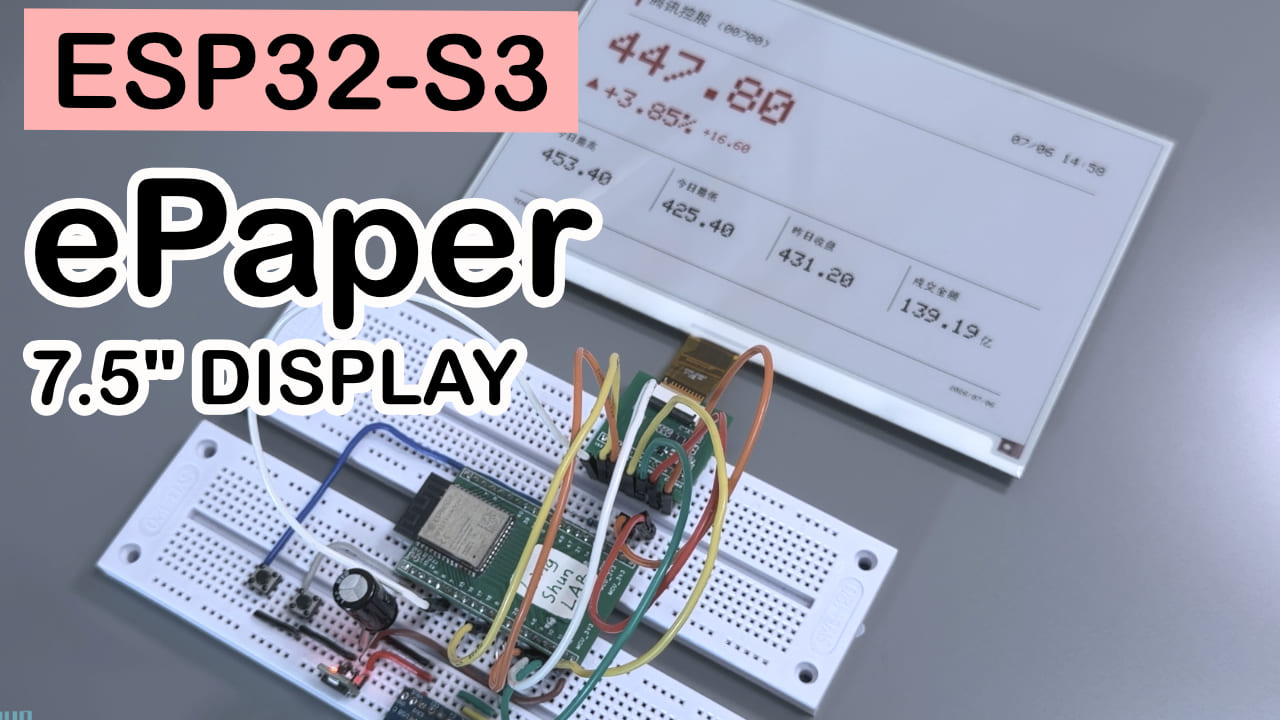
TL;DR: ESP32-S3 + 7.5“ tri-color e-paper (GDEY075Z08) = a Tencent Holdings stock-price dashboard that automatically sleeps when the HK market closes. HK convention is red = up, black = down, so one glance tells you whether to celebrate or cry.
Difficulty: ⭐⭐⭐☆☆ (needs a tiny bit of circuit sense, but if you can flash an Arduino sketch you can follow along) Estimated time: 1–2 hours (not counting the time spent staring at the e-paper panel waiting for it to refresh) Test environment: Arduino IDE 2.3.8 + ESP32 Arduino Core 3.3.10 + GxEPD2 v1.6.9 + Adafruit GFX Library v1.12.6 (When installing the libraries, try to match these versions — going too new or too old is a reliable way to step into a pitfall.)
Since this demo uses Tencent Finance’s free API, I’m using Tencent Holdings’s stock price as the example — no other reason. This article provides NO investment advice. Investing carries risk — please be careful.
TL;DR (quick start):
- Wiring: EPD’s SDI→GPIO11, SCL→GPIO12, CS→GPIO10, DC→GPIO9, RES→GPIO8, BUSY→GPIO7, VCC to 3.3V, GND to common ground.
- Install libraries: GxEPD2, Adafruit GFX Library (WiFi and HTTPClient ship with the ESP32 core, no extra install needed).
- Edit
ssidandpasswordin the code to your own WiFi.- Flash the sketch, wait for the first price to render on the panel, and you’re done.
Introduction
I have a fairly silly habit: whenever I have a free moment I pull out my phone to check my stock watchlist, only to find nothing has changed — pure dopamine drain. Then it hit me: rather than letting a phone app yank my dopamine around, why not build a “dedicated dashboard” that does exactly one thing — quietly pin the stock price on my desk. No pop-ups, no push notifications. One glance and I know whether today is a celebration day or a cry day.
This tutorial records how I used an ESP32 and a 7.5“ e-paper panel to build an auto-refreshing Tencent Holdings (00700) stock dashboard, and along the way solved two big headaches: “the Chinese font table is incomplete” and “stop pointlessly refreshing after market close.” By the end you’ll be able to copy one exactly like it, or adapt it to any stock you actually care about.
Since this demo uses Tencent Finance’s free API, I’m using Tencent Holdings’s stock price as the example — no other reason. This article provides NO investment advice. Investing carries risk — please be careful.
The Result
The end result is a black/white/red tri-color e-paper panel sitting quietly on the desk, showing the price, change percentage, the day’s high/low, and turnover. HK convention is red = up, black = down, so a single glance tells you what mood you’re in. During market close, lunch break, and weekends it automatically “plays dead” and refreshes rarely; once trading resumes it returns to its normal cadence — no more midnight refreshes spooking yourself.
Since this demo uses Tencent Finance’s free API, I’m using Tencent Holdings’s stock price as the example — no other reason. This article provides NO investment advice. Investing carries risk — please be careful.
Important things bear repeating — thrice!!!
Component Overview
7.5“ tri-color e-paper panel: Think of it as a “giant version of the electronic price tags in supermarkets.” A single pulse of power “freezes” the image onto a paper-like medium, and from then on — even with power cut — the image stays. Only the next refresh consumes energy. The tri-color version adds one shade of red compared to the common black/white version, which happens to be perfect for indicating “up” in a stock context — very on-brand. The model used here is GDEY075Z08, with a resolution of 800×480. We picked it because the resolution is large enough to fit price, change, and four data fields on one screen with no flipping back and forth.
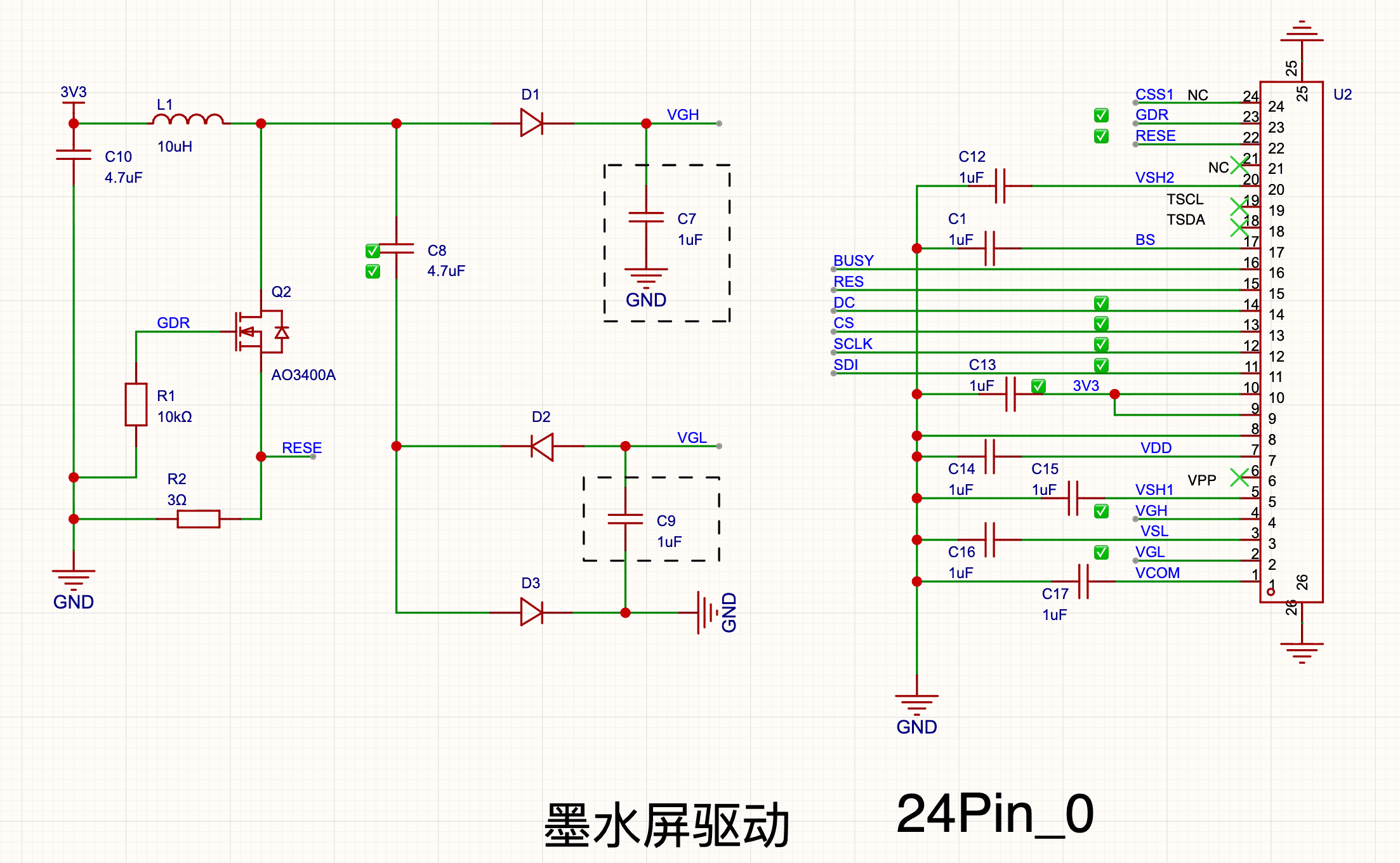
E-paper driver board: Pin-compatible with what’s commonly available on the market. This one is hand-soldered SMD and the design isn’t quite final yet — the 7.5“ panel displays flawlessly, but 4.2“ and 1.54“ e-paper panels still have a few issues to be optimized later. Schematic shared below:
ESP32 dev board: The brain of the whole project — it connects to WiFi, fetches data, calculates refresh timing, and drives the panel. Any ESP32 variant you have on hand will work as long as it has enough GPIO. (The pin numbers in this tutorial suit the common ESP32-S3 family. If you’re on an older classic ESP32, just swap the pin numbers for whatever is available on your board.)
BOM
| Component | Model / Spec | Qty |
|---|---|---|
| ESP32 dev board | ESP32-S3, or any ESP32 variant with SPI pins | 1 |
| E-paper driver board | Hand-soldered, but the pinout matches most e-paper driver boards on the market. | 1 |
| 7.5“ e-paper panel | GDEY075Z08, 7.5“, 800×480, black/white/red tri-color | 1 |
| Dupont wires | Male-to-female | a handful |
7.5“ E-Paper Driver Board Pinout
I drew the schematic myself, had a PCB made, and hand-soldered the SMD parts. The pinout matches most e-paper driver boards on the market.
| Pin | Full name | Purpose |
|---|---|---|
| VCC | Voltage Common Collector | Power input pin. Connect to the ESP32-S3’s 3V3 (3.3V) output. |
| GND | Ground | Power reference ground. Connect to the ESP32-S3’s GND to complete the circuit. |
| SDI/MOSI | Master Out, Slave In | SPI data line — ESP32 sends data to the panel. |
| SCL/SCK | Serial Clock | SPI clock line — paces the data transfer. |
| CS | Chip Select | Tells the panel “the next bytes are for you.” |
| DC | Data/Command select | Distinguishes between pixel data and control commands. |
| RES/RST | Reset | Pull low for a moment to re-initialize the panel. |
| BUSY | Busy status indicator | Pulled low while the panel is refreshing. The ESP32 reads it to decide “can I send the next command yet?” |
Wiring
| E-paper pin | ESP32 pin |
|---|---|
| SDI/MOSI | GPIO11 |
| SCL/SCK | GPIO12 |
| CS | GPIO10 |
| DC | GPIO9 |
| RES | GPIO8 |
| BUSY | GPIO7 |
| VCC | 3.3V |
| GND | GND |
After wiring, double-check every line before applying power — especially the BUSY line. Getting BUSY wrong or leaving it cold-soldered is the cause of ~80% of troubleshooting pain. The sketch includes a boot-time diagnostic specifically to defend against this (explained in the code walkthrough below).
Power Stability: Solving ESP32 Brownout Reset (BOD Error)
Because this build uses my DIY dev board, the power-supply section wasn’t fully baked, and during testing I hit E BOD: Brownout detector was triggered. That means the ESP32’s brownout detector tripped — the board detected the voltage dropping below the safe threshold and rebooted itself to stay alive.
Why BOD Triggers
When the ESP32 brings up WiFi, the radio briefly demands a few-hundred-milliampere burst of current. If your supply traces are too thin, your Dupont jumpers have contact resistance, or your USB port can’t deliver, the voltage sags for an instant and the ESP32 reboots. E-paper refresh is another power hog — if it fights WiFi for current at the same time, the rail collapses even more easily.
The standard fix is to parallel a bulk electrolytic capacitor (energy reservoir) and a ceramic capacitor (high-frequency filter) across the supply. After deploying the combo below, my testing got a lot more stable and I never saw BOD again.
1. Recommended Capacitor Choice
Use both capacitors in parallel — the combo punch works best:
- Electrolytic capacitor (the big reservoir):
470μFor1000μF(voltage rating of6.3V,10V, or16Vare all fine). It absorbs the instantaneous current spike when WiFi starts up. - Monolithic / ceramic capacitor (the small filter):
0.1μF(often marked104). Used to filter out high-frequency noise.
2. Where to Wire Them
The golden rule: the capacitors must sit as close to the ESP32 dev board’s pins as possible. Since you’re likely using Dupont jumpers, you can plug the caps right into the breadboard, or solder/twist them onto the power rail near the ESP32.
Wiring diagram
    [ External power / USB ]
          │   │
          ▼   ▼
       ┌─────────┐
       │  5V/3V3 │──────┬───────────────┬──────► [ ESP32 VCC/3V3 pin ]
       │         │      │               │
       │         │    + polarity        │
       │         │   ┌──┴──┐         ┌──┴──┐
       │         │   │     │         │     │
       │         │   │470uF│         │0.1uF│
       │         │   │     │         │     │
       │         │   └──┬──┘         └──┬──┘
       │         │      │ − negative    │
       │   GND   │──────┴───────────────┴──────► [ ESP32 GND pin ]
       └─────────┘
Pin-to-pin wiring
- Electrolytic capacitor’s positive (+, long leg) ───► connects to the ESP32’s
3V3(or5V/VIN, depending on which pin feeds your board). - Electrolytic capacitor’s negative (−, short leg, the side with the grey stripe on the sleeve) ───► connects to the ESP32’s
GND. - 0.1μF ceramic capacitor (no polarity) ───► both ends likewise go across
3V3andGND.
⚠️ Electrolytic capacitors are polarized. Wiring them backwards makes them heat up and even pop. Always confirm “long leg = positive, grey-stripe side = negative” before applying power.
3. Extra Troubleshooting Tips (if it still reboots after adding caps)
- Swap in a high-quality USB cable: Many cheap Dupont jumpers and thin USB cables have huge internal resistance. Switching to a thicker phone-charging cable works wonders.
- Change the power source: Don’t use the front USB ports on a PC case (they’re weak). Prefer the rear USB ports on the motherboard, or use a 5V/2A phone charger directly.
- Stagger the load in code: Make sure the e-paper refresh (also a power hog) does not happen at the same time as
WiFi.begin(). Connect WiFi and fetch the data first, then disconnect WiFi or put it to sleep before driving the panel refresh. The sketch also callsWiFi.setTxPower(WIFI_POWER_17dBm)to lower the transmit power — a software-level belt-and-suspenders.
Required Libraries
In the Arduino IDE Library Manager, search and install:
GxEPD2(by ZinggJM) — tested on v1.6.9Adafruit GFX Library— tested on v1.12.6
WiFi.h and HTTPClient.h ship with the ESP32 Arduino Core, so no separate install is needed — just make sure the ESP32 board support package in the Boards Manager is the 3.0.x line. Older cores may be missing some APIs.
Full Code + Walkthrough
Note: the code below keeps its Chinese comments and on-screen display strings because it ships a hand-built Chinese bitmap font (the ZH_GLYPHS_* arrays) tied to specific Chinese literals (腾讯控股, 今日最高, etc.). If you translate the on-screen labels, you must regenerate the font table accordingly.
// ============================================================
//  ESP32 + 电子墨水屏「腾讯控股」股票看板
//  - 每隔几分钟抓一次腾讯财经接口,把股价刷到 7.5 寸三色墨水屏上
//  - 港股收盘 / 周末会自动拉长等待,到下一个交易日再恢复刷新
//  - 演示版:用 delay() 等待、WiFi 常驻,不使用深度睡眠(适合 USB 供电)
// ============================================================
#include <GxEPD2_3C.h>
#include <Adafruit_GFX.h>
#include <SPI.h>
#include <WiFi.h>
#include <HTTPClient.h>

// ==================== 配置区域 ====================
const char* ssid     = "YOUR_WIFI_SSID";
const char* password = "YOUR_WIFI_PASSWORD";

// 腾讯财经接口(这里以腾讯控股 hk00700 为例,换股票改这个地址即可)
const String api_url = "http://qt.gtimg.cn/q=hk00700";
// ==================================================

// 1. 墨水屏与 ESP32 的接线引脚(按你的实际接线改这里的数字)
#define EPD_MOSI 11  // SDI / MOSI
#define EPD_CLK  12  // SCL / SCK
#define EPD_CS   10  // CS
#define EPD_DC   9   // DC
#define EPD_RST  8   // RES / RESET
#define EPD_BUSY 7   // BUSY

// 2. 构造驱动实例 (GDEY075Z08 800x480)
GxEPD2_3C<GxEPD2_750c_GDEY075Z08, GxEPD2_750c_GDEY075Z08::HEIGHT / 2> display(GxEPD2_750c_GDEY075Z08(EPD_CS, EPD_DC, EPD_RST, EPD_BUSY));

// 股票数据结构体
struct StockData {
  String name;       // 股票名称
  String code;       // 股票代码
  String price;      // 当前价格
  String change;     // 涨跌额
  String changePct;  // 涨跌幅 (%)
  String high;       // 今日最高
  String low;        // 今日最低
  String volume;     // 成交额 (亿)
  String yestClose;  // 昨收
  String time;       // 更新时间
  bool isUp;         // 是否上涨
};

StockData stock;

float  lastPriceF    = -1.0f;
String lastStockTime = "";

// ==================== 本地中文字库(自动生成,无需修改) ====================
struct ZhGlyph { uint16_t cp; const uint8_t* bmp; };

const uint8_t ZH24_W = 24;
const uint8_t ZH24_H = 24;
const uint8_t zh24_817E[72] PROGMEM = {0,0,0,0,192,0,248,201,24,248,217,12,152,217,4,152,253,31,152,65,0,152,65,0,248,255,63,152,49,6,152,17,12,152,249,63,152,15,50,248,7,34,136,49,2,136,17,3,140,241,31,140,1,24,140,254,27,230,0,24,100,0,30,0,0,14,0,0,0,0,0,0};
const uint8_t zh24_8BAF[72] PROGMEM = {0,0,0,16,0,0,24,255,7,56,255,7,48,24,6,0,24,6,0,24,6,62,24,6,62,24,6,48,24,6,48,255,6,48,255,6,48,24,6,48,24,6,48,24,6,48,24,6,176,24,6,240,25,108,240,24,108,120,24,124,56,24,56,16,24,0,0,0,0,0,0,0};
const uint8_t zh24_63A7[72] PROGMEM = {0,0,0,112,192,0,48,192,1,32,254,63,32,254,63,252,7,48,252,103,54,32,48,2,32,48,6,32,24,62,224,13,62,224,1,0,120,0,0,60,252,31,44,252,31,32,128,0,32,128,0,32,128,0,32,128,0,48,255,127,60,255,127,56,0,0,24,0,0,0,0,0};
const uint8_t zh24_80A1[72] PROGMEM = {0,0,0,248,227,15,248,227,15,24,99,12,24,99,12,24,35,12,248,51,12,248,59,124,24,3,0,24,3,0,24,251,31,24,251,31,248,51,12,248,35,12,24,99,4,12,99,6,12,195,3,12,131,3,12,195,7,206,115,126,198,61,56,4,8,32,0,0,0,0,0,0};
const ZhGlyph ZH_GLYPHS_24[] PROGMEM = {
  {0x817E, zh24_817E}, {0x8BAF, zh24_8BAF}, {0x63A7, zh24_63A7}, {0x80A1, zh24_80A1},
};
const uint8_t ZH24_COUNT = 4;

const uint8_t ZH16_W = 16;
const uint8_t ZH16_H = 16;
const uint8_t zh16_4ECA[32] PROGMEM = {128,1,128,1,64,2,96,6,48,28,152,121,142,97,0,0,248,31,0,12,0,12,0,6,0,7,0,3,0,1,0,0};
const uint8_t zh16_65E5[32] PROGMEM = {0,0,248,31,24,24,24,24,24,24,24,24,24,24,248,31,24,24,24,24,24,24,24,24,248,31,24,24,0,0,0,0};
const uint8_t zh16_6700[32] PROGMEM = {0,0,248,31,24,16,248,31,248,31,0,0,254,127,136,0,248,63,136,50,248,18,136,28,252,12,132,126,128,35,0,0};
const uint8_t zh16_9AD8[32] PROGMEM = {128,1,128,1,254,127,0,0,240,15,16,8,240,15,0,0,252,63,4,32,228,39,36,36,228,39,4,48,4,24,0,0};
const uint8_t zh16_4F4E[32] PROGMEM = {16,0,24,60,200,15,200,4,204,4,204,4,206,127,202,12,200,8,200,11,200,9,72,16,8,112,232,111,8,0,0,0};
const uint8_t zh16_6628[32] PROGMEM = {0,2,0,3,62,1,38,127,166,3,230,2,126,2,38,62,38,2,38,2,62,62,6,2,0,2,0,2,0,2,0,0};
const uint8_t zh16_6536[32] PROGMEM = {0,0,32,2,32,2,36,3,36,127,36,17,164,17,164,16,164,19,36,26,60,10,62,14,32,14,32,59,160,113,32,0};
const uint8_t zh16_76D8[32] PROGMEM = {0,0,192,0,240,31,16,24,144,25,16,25,254,127,16,24,152,25,8,12,248,31,72,18,72,18,72,18,254,127,0,0};
const uint8_t zh16_6210[32] PROGMEM = {0,0,0,3,0,27,0,3,252,63,12,2,12,18,252,18,204,26,76,14,76,12,68,12,36,14,6,91,128,112,0,0};
const uint8_t zh16_4EA4[32] PROGMEM = {128,1,128,1,0,0,252,127,32,4,112,28,24,48,12,36,100,6,64,6,192,3,128,1,224,7,60,124,12,48,0,0};
const uint8_t zh16_91D1[32] PROGMEM = {0,0,128,0,192,1,96,2,48,12,24,56,246,111,128,1,128,1,252,31,128,1,144,9,144,9,128,5,252,63,0,0};
const uint8_t zh16_989D[32] PROGMEM = {16,0,16,127,254,8,138,12,8,63,124,35,38,43,48,43,204,43,126,43,68,8,68,28,124,54,68,99,0,1,0,0};
const uint8_t zh16_4EBF[32] PROGMEM = {48,0,48,0,208,63,24,24,8,12,12,4,14,6,10,2,8,3,136,1,136,0,200,64,200,96,136,127,8,0,0,0};
const ZhGlyph ZH_GLYPHS_16[] PROGMEM = {
  {0x4ECA, zh16_4ECA}, {0x65E5, zh16_65E5}, {0x6700, zh16_6700}, {0x9AD8, zh16_9AD8},
  {0x4F4E, zh16_4F4E}, {0x6628, zh16_6628}, {0x6536, zh16_6536}, {0x76D8, zh16_76D8},
  {0x6210, zh16_6210}, {0x4EA4, zh16_4EA4}, {0x91D1, zh16_91D1}, {0x989D, zh16_989D},
  {0x4EBF, zh16_4EBF},
};
const uint8_t ZH16_COUNT = 13;

void drawZh(int16_t x, int16_t y, const String &text, uint16_t color, uint8_t size = 24) {
  const ZhGlyph* table; uint8_t count, cw, ch;
  if (size == 16) { table = ZH_GLYPHS_16; count = ZH16_COUNT; cw = ZH16_W; ch = ZH16_H; }
  else            { table = ZH_GLYPHS_24; count = ZH24_COUNT; cw = ZH24_W; ch = ZH24_H; }
  int16_t cx = x;
  int i = 0;
  int n = text.length();
  while (i < n) {
    uint16_t cp = 0;
    int adv = 1;
    uint8_t c = (uint8_t)text[i];
    if (c < 0x80) { cp = c; adv = 1; }
    else if ((c & 0xE0) == 0xC0 && i + 1 < n) { cp = ((c & 0x1F) << 6) | ((uint8_t)text[i + 1] & 0x3F); adv = 2; }
    else if ((c & 0xF0) == 0xE0 && i + 2 < n) { cp = ((c & 0x0F) << 12) | (((uint8_t)text[i + 1] & 0x3F) << 6) | ((uint8_t)text[i + 2] & 0x3F); adv = 3; }
    const uint8_t* bmp = nullptr;
    for (int k = 0; k < count; k++) {
      if (table[k].cp == cp) { bmp = table[k].bmp; break; }
    }
    if (bmp) display.drawXBitmap(cx, y, bmp, cw, ch, color);
    cx += cw;
    i += adv;
  }
}

long daysFromCivil(int y, int m, int d) {
  y -= m <= 2;
  const long era = (y >= 0 ? y : y - 399) / 400;
  const long yoe = y - era * 400;
  const long doy = (153L * (m + (m > 2 ? -3 : 9)) + 2) / 5 + d - 1;
  const long doe = yoe * 365 + yoe / 4 - yoe / 100 + doy;
  return era * 146097L + doe - 719468L;
}

int weekdayOfEpochDay(long day) {
  return (int)(((day % 7) + 7 + 4) % 7);
}

void parseStockTime(const String &t, int &y, int &mo, int &d, int &h, int &mi, int &s) {
  y  = t.substring(0, 4).toInt();
  mo = t.substring(5, 7).toInt();
  d  = t.substring(8, 10).toInt();
  h  = t.substring(11, 13).toInt();
  mi = t.substring(14, 16).toInt();
  s  = t.substring(17, 19).toInt();
}

unsigned long computeSleepSeconds(int y, int mo, int d, int h, int mi, int s) {
  const long OPEN_AM = 570, CLOSE_AM = 720;
  const long OPEN_PM = 780, CLOSE_PM = 960;
  long today = daysFromCivil(y, mo, d);
  long mod   = h * 60L + mi;
  long nowEp = today * 1440L + mod;
  long wakeEp = -1;

  int wd = weekdayOfEpochDay(today);
  bool isWeekday = (wd >= 1 && wd <= 5);
  if (isWeekday) {
    if      (mod <  OPEN_AM)  wakeEp = today * 1440L + OPEN_AM;
    else if (mod <  CLOSE_AM) wakeEp = ((nowEp / 10) + 1) * 10;
    else if (mod <  OPEN_PM)  wakeEp = today * 1440L + OPEN_PM;
    else if (mod <  CLOSE_PM) wakeEp = ((nowEp / 10) + 1) * 10;
  }
  if (wakeEp < 0) {
    for (int k = 1; k <= 7; k++) {
      long day = today + k;
      if (weekdayOfEpochDay(day) >= 1 && weekdayOfEpochDay(day) <= 5) {
        wakeEp = day * 1440L + OPEN_AM;
        break;
      }
    }
  }
  if (wakeEp < 0) wakeEp = nowEp + 600;

  long sleepSec = (wakeEp - nowEp) * 60L - s;
  if (sleepSec < 60)   sleepSec = 60;
  if (sleepSec > 3600) sleepSec = 3600;
  return (unsigned long)sleepSec;
}

void setup() {
  Serial.begin(115200);
  delay(1000);

  // 第一步:诊断 BUSY 引脚。GDEY075Z08 空闲时 BUSY=高(1),忙时=低(0)。
  //         若读到 0,通常是接错脚/虚焊/短路到地,或面板供电不足卡在忙状态,
  //         这正是刷新总卡满 30s 超时的根因。
  pinMode(EPD_BUSY, INPUT_PULLUP);
  delay(1);
  Serial.printf("[BUSY diag] GPIO%d idle=%d (期望 1)\n", EPD_BUSY, digitalRead(EPD_BUSY));

  SPI.begin(EPD_CLK, -1, EPD_MOSI, -1);

  // 第二步:画开机页
  Serial.println(">>> Boot: drawing boot screen...");
  display.init(115200);
  display.setRotation(0);
  drawBootPage("Connecting Network...");
  display.powerOff();
  delay(1000);

  // 第三步:连接 WiFi(常驻,不再每轮重连)
  Serial.println(">>> Connecting WiFi...");
  WiFi.mode(WIFI_STA);
  WiFi.setTxPower(WIFI_POWER_17dBm); // 降低发射功率,缓解连网瞬间的电流尖峰导致的欠压重启
  WiFi.begin(ssid, password);
  int timeout_count = 0;
  while (WiFi.status() != WL_CONNECTED && timeout_count < 30) {
    delay(500);
    Serial.print(".");
    timeout_count++;
  }
  if (WiFi.status() == WL_CONNECTED) {
    Serial.println("\nWiFi Connected!");
  } else {
    Serial.println("\nWiFi Failed, will keep retrying in loop.");
  }
  delay(2000);
}

void fetchAndDraw() {
  if (WiFi.status() != WL_CONNECTED) {
    Serial.println(">>> WiFi dropped, reconnecting...");
    WiFi.reconnect();
    delay(3000);
  }
  if (WiFi.status() == WL_CONNECTED) {
    Serial.println(">>> Fetching stock data...");
    fetchStockData();
  } else {
    stock.name = "腾讯控股"; stock.code = "00700"; stock.price = "431.20";
    stock.change = "+1.00"; stock.changePct = "+0.23%"; stock.high = "445.80";
    stock.low = "431.20"; stock.volume = "108.97"; stock.yestClose = "430.20";
    stock.time = "2026/07/03 16:08:18"; stock.isUp = true;
  }

  float priceF = stock.price.toFloat();
  if (priceF != lastPriceF) {
    display.init(115200);
    display.setRotation(0);
    drawStockDashboard();
    display.powerOff();
    lastPriceF = priceF;
    Serial.println(">>> Screen refreshed.");
  } else {
    Serial.println(">>> Price unchanged, skip redraw.");
  }
}

void loop() {
  fetchAndDraw();

  unsigned long waitSec;
  if (stock.time == lastStockTime) {
    waitSec = 3600;
    Serial.println(">>> Timestamp frozen (market closed), wait 1h.");
  } else {
    int y, mo, d, h, mi, s;
    parseStockTime(stock.time, y, mo, d, h, mi, s);
    waitSec = computeSleepSeconds(y, mo, d, h, mi, s);
    Serial.printf(">>> Next refresh in %lu s (now %04d/%02d/%02d %02d:%02d:%02d)\n",
                  waitSec, y, mo, d, h, mi, s);
  }
  lastStockTime = stock.time;

  delay(waitSec * 1000UL);
}

void drawBootPage(const char* statusText) {
  display.firstPage();
  do {
    display.fillScreen(GxEPD_WHITE);
    const char* title = "STOCK MONITOR";
    int titleW = strlen(title) * 18;
    display.setTextColor(GxEPD_BLACK);
    display.setTextSize(3);
    display.setCursor((800 - titleW) / 2, 200);
    display.print(title);
    display.fillRect((800 - titleW) / 2, 244, titleW, 2, GxEPD_RED);
    display.setTextColor(GxEPD_RED);
    display.setTextSize(2);
    int sw = strlen(statusText) * 12;
    display.setCursor((800 - sw) / 2, 276);
    display.print(statusText);
  } while (display.nextPage());
}

void drawStockDashboard() {
  display.firstPage();
  do {
    display.fillScreen(GxEPD_WHITE);
    uint16_t themeColor = stock.isUp ? GxEPD_RED : GxEPD_BLACK;

    display.fillRect(48, 48, 6, 40, GxEPD_RED);
    drawZh(64, 56, stock.name, GxEPD_BLACK);
    display.setTextColor(GxEPD_BLACK);
    display.setTextSize(2);
    display.setCursor(172, 60);
    display.print("(" + stock.code + ")");
    String tm = stock.time.substring(5, 16);
    display.setCursor(752 - (int)(tm.length() * 12), 60);
    display.print(tm);

    display.drawFastHLine(48, 104, 704, GxEPD_BLACK);

    display.setTextColor(themeColor);
    display.setTextSize(8);
    display.setCursor(48, 130);
    display.print(stock.price);

    if (stock.isUp) {
      display.fillTriangle(58, 222, 48, 240, 68, 240, themeColor);
    } else {
      display.fillTriangle(48, 222, 68, 222, 58, 240, themeColor);
    }
    display.setTextColor(themeColor);
    display.setTextSize(4);
    display.setCursor(78, 222);
    display.print(stock.changePct);

    float chgMag = stock.change.toFloat();
    if (chgMag < 0) chgMag = -chgMag;
    String changeStr = String(stock.isUp ? "+" : "-") + String(chgMag, 2);
    display.setTextSize(2);
    display.setCursor(234, 230);
    display.print(changeStr);

    display.drawFastHLine(48, 296, 704, GxEPD_BLACK);
    display.drawFastVLine(224, 308, 76, GxEPD_BLACK);
    display.drawFastVLine(400, 308, 76, GxEPD_BLACK);
    display.drawFastVLine(576, 308, 76, GxEPD_BLACK);

    drawZh(48,  318, "今日最高", GxEPD_BLACK, 16);
    drawZh(236, 318, "今日最低", GxEPD_BLACK, 16);
    drawZh(412, 318, "昨日收盘", GxEPD_BLACK, 16);
    drawZh(588, 318, "成交金额", GxEPD_BLACK, 16);

    display.setTextColor(GxEPD_BLACK);
    display.setTextSize(3);
    display.setCursor(48,  354); display.print(stock.high);
    display.setCursor(236, 354); display.print(stock.low);
    display.setCursor(412, 354); display.print(stock.yestClose);
    display.setCursor(588, 354); display.print(stock.volume);
    drawZh(588 + stock.volume.length() * 18 + 4, 362, "亿", GxEPD_BLACK, 16);

    display.drawFastHLine(48, 432, 704, GxEPD_BLACK);
    display.setTextColor(GxEPD_BLACK);
    display.setTextSize(1);
    display.setCursor(48, 446);
    display.print("TENCENT HOLDINGS");
    String dateStr = stock.time.substring(0, 10);
    display.setCursor(752 - (int)(dateStr.length() * 6), 446);
    display.print(dateStr);

  } while (display.nextPage());
}

void fetchStockData() {
  HTTPClient http;
  http.begin(api_url);
  int httpCode = http.GET();

  if (httpCode == HTTP_CODE_OK) {
    String payload = http.getString();
    Serial.println("Raw Data received.");

    int tokens[40];
    int tokenCount = 0;

    int pos = 0;
    while ((pos = payload.indexOf('~', pos)) != -1 && tokenCount < 40) {
      tokens[tokenCount++] = pos;
      pos++;
    }

    if (tokenCount > 35) {
      auto getField = [&](int index) {
        return payload.substring(tokens[index-1] + 1, tokens[index]);
      };

      stock.name      = "腾讯控股";
      stock.code      = getField(2);
      stock.price     = getField(3);
      stock.yestClose = getField(4);
      stock.high      = getField(33);
      stock.low       = getField(34);
      stock.time      = getField(30);
      stock.change    = getField(31);
      stock.changePct = getField(32);

      stock.price = String(stock.price.toFloat(), 2);
      stock.high = String(stock.high.toFloat(), 2);
      stock.low = String(stock.low.toFloat(), 2);
      stock.yestClose = String(stock.yestClose.toFloat(), 2);

      double volBytes = getField(37).toFloat();
      stock.volume = String((volBytes / 100000000.0), 2);

      float chg = stock.change.toFloat();
      if (chg >= 0) {
        stock.isUp = true;
        stock.changePct = "+" + String(stock.changePct.toFloat(), 2) + "%";
      } else {
        stock.isUp = false;
        stock.changePct = String(stock.changePct.toFloat(), 2) + "%";
      }
    }
  } else {
    Serial.printf("HTTP GET Failed, error: %s\n", http.errorToString(httpCode).c_str());
  }
  http.end();
}
Code Walkthrough
Step 1 — the font table is hand-carved. Off-the-shelf Chinese font files easily run tens to hundreds of KB, and they don’t necessarily include the four characters “腾讯控股.” So instead I pre-rendered the dozen-plus characters the project actually uses into bitmap arrays and embedded them directly in the sketch. Tiny footprint, and absolutely no “missing glyph” tofu boxes.
Step 2 — trading hours are computed, not hard-coded. computeSleepSeconds uses a date algorithm (Howard Hinnant’s civil-from-days algorithm) to derive the day of week, then combines it with the HK market’s open / lunch break / close times to decide “how long should I sleep before the next refresh.” During trading hours it refreshes every 10 minutes; after close it jumps straight to the next trading day’s open — no pointless spinning at 3 a.m.
Step 3 — skip the redraw if the price hasn’t moved. An e-paper refresh takes several seconds and visibly flickers, so the sketch remembers the last drawn price in lastPriceF. If the value hasn’t changed, the refresh is skipped entirely. Only a real change triggers a redraw — saving quite a few refresh cycles.
Step 4 — BUSY pin diagnostic. The very first thing at boot is to read the BUSY pin level. If it isn’t the expected HIGH, it’s almost always a wiring or power issue. Telling yourself up front saves you from troubleshooting for an hour only to discover a miswired pin.
A Simple Hello World Program
Here’s a minimal test sketch that’s easy to run — the earlier code, with all the networking mixed in, looks complicated and gets in the way of understanding.
#include <GxEPD2_3C.h>
#include <Adafruit_GFX.h>
#include <SPI.h>

// 1. Define the e-paper pins
#define EPD_MOSI 11  // SDI / MOSI
#define EPD_CLK  12  // SCL / SCK
#define EPD_CS   10  // CS
#define EPD_DC   9   // DC
#define EPD_RST  8   // RES / RESET
#define EPD_BUSY 7   // BUSY

// 2. Construct the driver instance (handy for quickly trying different driver models)
// When testing, uncomment only one at a time; comment the rest out with //

// Option A: GDEW075Z08 (800x480, driver IC GD7965)
// GxEPD2_3C<GxEPD2_750c_Z08, GxEPD2_750c_Z08::HEIGHT> display(GxEPD2_750c_Z08(EPD_CS, EPD_DC, EPD_RST, EPD_BUSY));

// Option B: GDEW075Z09 (640x384, driver IC UC8179 / IL0371)
// GxEPD2_3C<GxEPD2_750c, GxEPD2_750c::HEIGHT> display(GxEPD2_750c(EPD_CS, EPD_DC, EPD_RST, EPD_BUSY));

// Option C: GDEH075Z90 (880x528, driver IC SSD1677) — heavy on memory, so it uses HEIGHT / 2 paging
// GxEPD2_3C<GxEPD2_750c_Z90, GxEPD2_750c_Z90::HEIGHT / 2> display(GxEPD2_750c_Z90(EPD_CS, EPD_DC, EPD_RST, EPD_BUSY));

// Option D: GDEW075Z08 (800x480, another variant built on the UC8179 IC)
// GxEPD2_3C<GxEPD2_750c_GDEW075Z08, GxEPD2_750c_GDEW075Z08::HEIGHT / 2> display(GxEPD2_750c_GDEW075Z08(EPD_CS, EPD_DC, EPD_RST, EPD_BUSY));

// Option E: GDEY075Z08 (800x480, driver IC UC8179)
GxEPD2_3C<GxEPD2_750c_GDEY075Z08, GxEPD2_750c_GDEY075Z08::HEIGHT / 2> display(GxEPD2_750c_GDEY075Z08(EPD_CS, EPD_DC, EPD_RST, EPD_BUSY));


void setup() {
  Serial.begin(115200);
  delay(1000);

  // 3. [KEY STEP] Because we're using non-default SPI pins, the ESP32-S3 SPI bus must be initialized manually first
  // Argument order: SCK, MISO (-1 means none), MOSI, SS (-1 means not assigned yet)
  SPI.begin(EPD_CLK, -1, EPD_MOSI, -1);

  // 4. Initialize the display
  Serial.println("Initializing e-Paper...");
  display.init(115200);
  display.setRotation(0); // 0 = standard landscape orientation

  // 5. Start drawing a simple page
  Serial.println("Rendering test page...");
  drawSimplePage();

  // 6. Once the refresh is done, put the screen into deep sleep to protect it and cut power completely
  display.powerOff();
  Serial.println("Done! Screen is now in deep sleep.");
}

void loop() {
  // Keep the loop empty to avoid repeated refreshes wearing out the e-paper
  delay(1000);
}

// Minimal drawing function
void drawSimplePage() {
  display.firstPage();
  do {
    // Clear the screen (all white)
    display.fillScreen(GxEPD_WHITE);

    // 1. Red bar at the top
    display.fillRect(0, 0, display.width(), 50, GxEPD_RED);
    display.setTextColor(GxEPD_WHITE);
    display.setTextSize(3);
    display.setCursor(30, 15);
    display.print("ESP32-S3 TEST");

    // 2. Large black text in the middle
    display.setTextColor(GxEPD_BLACK);
    display.setTextSize(5);
    display.setCursor(50, 180);
    display.print("Hello World!");

    // 3. Red hint text at the bottom
    display.setTextColor(GxEPD_RED);
    display.setTextSize(2);
    display.setCursor(50, 300);
    display.print("7.5 inch E-Paper Display Works!");

  } while (display.nextPage());
}
Troubleshooting
Don’t panic — 80% of issues come down to these:
- Serial spams
E BOD: Brownout detector was triggeredand reboots in a loop: The ESP32’s brownout protection tripped — most likely WiFi’s inrush current sagged the rail. See the “Power Stability” section above: parallel a 470μF/1000μF electrolytic plus a 0.1μF ceramic across3V3andGND, and swap in a thicker USB cable. - The panel stays blank / unresponsive: First check the BUSY line. In Serial Monitor, the
[BUSY diag]value should read 1; if it’s 0, inspect the wiring and power — usually a Dupont jumper that didn’t seat properly. - Every refresh hangs the full 30 seconds before timing out: Almost certainly the BUSY pin is miswired or the panel is underfed (USB current too weak also causes this — try a thicker data cable).
- Chinese characters render as tofu boxes or are missing: Those glyphs aren’t in the local font table yet. Go back to the font-table section mentioned in the Code Walkthrough and add the bitmap array for the new character.
- WiFi refuses to connect: Double-check
ssidandpassword, and confirm the router is on the 2.4 GHz band — most ESP32 variants don’t support 5 GHz. - The price freezes on one number and won’t update: That’s expected behavior — if the timestamp isn’t changing, the sketch concludes “market closed” and stretches the wait to 1 hour. Once trading hours resume, the normal refresh cadence returns automatically.
- Compile error:
GxEPD2_750c_GDEY075Z08not found: Your GxEPD2 library is too old — this panel was added to the supported list later. Upgrade to a newer version.
FAQ
Q: Can I reassign the ESP32 pins freely?
A: Yes — any generic GPIO that supports SPI will do. Just change the EPD_MOSI / EPD_CLK / EPD_CS / EPD_DC / EPD_RST / EPD_BUSY macros at the top of the sketch to match your actual wiring; nothing else needs to change.
Q: Can I make it refresh faster — say, once a minute?
A: Yes — change the “10 minutes” inside computeSleepSeconds to whatever interval you want. But keep in mind that e-paper panels have a finite refresh-cycle lifespan; pushing the rate too high is a poor trade.
Q: Will battery power work?
A: The current sketch is the demo-style “WiFi always-on + delay() wait” — WiFi stays powered the whole time, so it’s relatively hungry and best suited to USB power. For battery use, switch to deep-sleep mode: wake up, fetch the data, drop WiFi, and go back to sleep.
Q: How much memory does this project take? Will an ESP32 keep up? A: The font table and code are small; the main cost is GxEPD2’s display buffer. For a 7.5“ tri-color panel, pick an ESP32 variant with reasonable Flash and RAM headroom — a normal ESP32-S3 dev board is more than enough.
Q: Can I display a different stock — say, an A-share or a US stock?
A: Yes — swap api_url for that stock’s corresponding Tencent Finance endpoint. But note that A-share / US-market trading hours differ from HK’s, so the open/close checkpoints inside computeSleepSeconds need adjusting accordingly. Also, any other Chinese characters you introduce need their own font-table entries, otherwise they’ll render as tofu boxes.
Q: Can I switch to a different panel size — say, the smaller 4.2“? A: Yes — substitute the corresponding GxEPD2-supported model, and remember to re-tune the layout coordinates (numbers like 800 and 480) to the new panel’s resolution, otherwise the layout will be off.
Going Further
- Rotate through multiple stocks, switching the dashboard on a timer.
- Add a simple WiFi-configuration web page so you don’t have to re-flash the credentials each time.
- Hook up a photoresistor: refresh normally during the day, drop the refresh rate at night to save power.
- Switch to deep sleep + battery for a true wireless desk gadget you can put anywhere.